
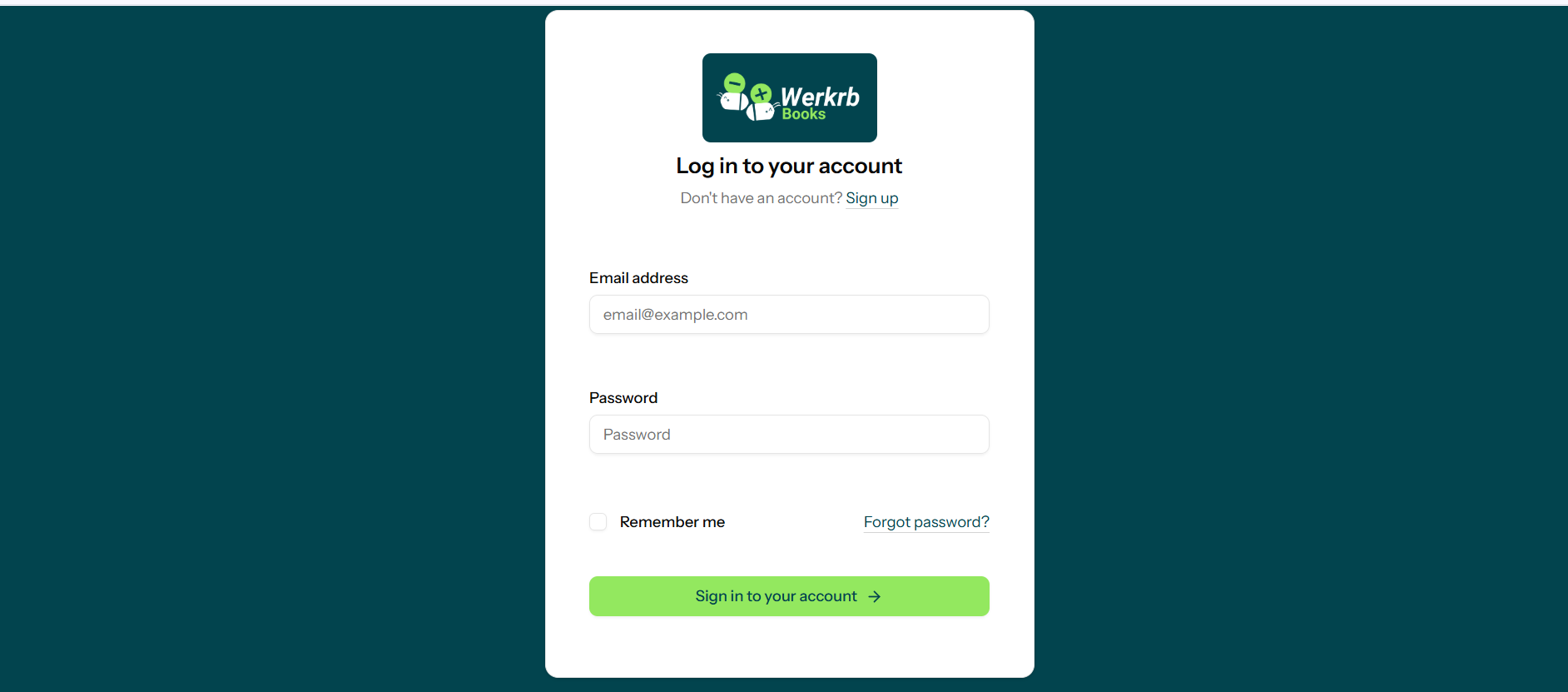
Step 1: Log In to Werkrb Books
Go to https://books.werkrb.com and log in with your registered email and password. Once inside, you’ll be prompted to complete your company setup.
Step 2: Enter Organization Details
The first screen will ask you to provide your basic business details:
- Organization Name – The official name of your company.
- Industry Type – Select the category that best matches your business.
- Time Zone – Ensure accurate time stamping of invoices and transactions.
- Business Address – Add your registered address, contact number, and website.
Tip: Add your company logo here to personalize invoices, estimates, and reports with your branding.
Step 3: Choose Currency & Language
Select your base currency—this will be used in all your financial transactions. If your business deals internationally, you can add multiple currencies later.
You can also set the default language for your documents.
Step 4: Configure Tax Information
Taxes vary by country, so setting them up correctly ensures compliance:
- GST for India
- Sales Tax for the US
- VAT or regional taxes for other countries
You can enable or disable tax preferences based on your requirements.
Step 5: Set Up Financial Year & Preferences
Werkrb Books allows you to define:
- Financial Year Start Date – Example: April 1 for India or January 1 for most other countries.
- Document Numbering – Customize invoice, estimate, and bill numbering to match your existing system.
- Default Payment Terms – Define when payments are due (e.g., 15 days, 30 days).
Step 6: Add Users & Roles (Optional)
If you have a finance team, you can invite members to join Werkrb Books. Assign them roles such as:
- Admin
- Accountant
- Staff (limited access)
This helps in secure collaboration without sharing unnecessary access.
Step 7: Save & Start Using Werkrb Books
Once you’ve entered all details, click Save and Continue. Your company is now set up, and you’re ready to:
- Create invoices
- Record expenses
- Track customer payments
- Generate reports