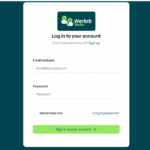

Step 1: Log in to Your Account
Go to https://books.werkrb.com and log in with your credentials. Once inside, navigate to the Customers module on the dashboard.
Step 2: Open the “New Customer” Form
- Click on Customers in the left-hand menu.
- Select + New Customer to open the customer creation form.
Step 3: Enter Basic Customer Details
Fill in the essential information about your customer:
- Customer Name – Full legal name or business name.
- Company Name – If the customer represents a company.
- Email Address – Used for sending invoices and payment reminders.
- Phone Number – For direct communication.
- Billing Address – Where invoices will be sent.
- Shipping Address – If different from the billing address.
Tip: Make sure the email address is correct, as this will be used for all billing communications.
Step 4: Configure Customer Preferences
Werkrb Books allows you to set preferences for each customer:
- Currency – Useful if you’re dealing with international clients.
- Payment Terms – For example, “Due on Receipt” or “Net 30 Days.”
- Tax Information – Add GST, VAT, or Sales Tax details if applicable.
- Portal Access – Enable customer portal access so they can view invoices, pay online, and track their transactions.
Step 5: Add Additional Information (Optional)
You can also record extra details such as:
- Customer notes
- Contact persons (for businesses with multiple representatives)
- Credit limits (if you extend credit to customers)
Step 6: Save the Customer Profile
Once all details are entered, click Save. The customer will now appear in your Customers list, ready for invoicing, estimates, or payment tracking.