
Step 1: Log in to Werkrb Books
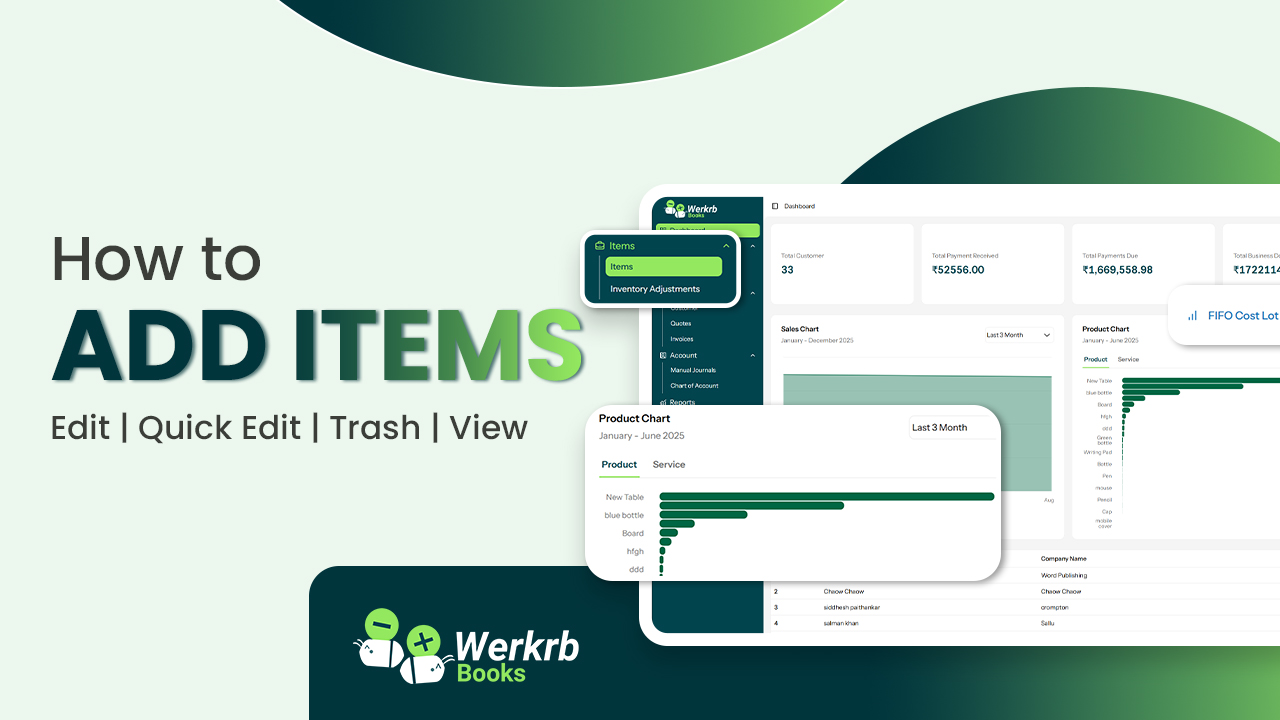
Go to https://books.werkrb.com and log in with your account. From the dashboard, navigate to the Items module in the sidebar menu.
Step 2: Open the “New Item” Form
-
Click on Items.
-
Select + New Item to open the item creation form.
Step 3: Enter Basic Item Information
Fill in the necessary details about your item:
-
Item Name – The product or service name.
-
SKU (Stock Keeping Unit) – A unique code to track items (optional but useful).
-
Type – Choose between Goods (tangible products) or Services.
-
Unit – Define the measurement unit (piece, box, hour, etc.).
Step 4: Add Pricing and Tax Details
-
Selling Price – The price at which you sell the item.
-
Purchase Price – The cost of acquiring the item (if applicable).
-
Tax Preference – Mark the item as taxable or non-taxable and assign the relevant tax rate (GST, VAT, Sales Tax, etc.).
Tip: Setting up correct tax preferences ensures compliance and prevents errors on invoices.
Step 5: Manage Inventory (For Goods)
If the item is a product (not a service), you can enable inventory tracking:
-
Track Inventory for This Item – Switch this on to monitor stock levels.
-
Opening Stock – Enter the quantity you currently have.
-
Reorder Point – Define the minimum stock level at which you need to restock.
-
Preferred Vendor – Optionally, link the vendor you purchase the item from.
Step 6: Save the Item
After filling in all required details, click Save. The item will now appear in your Items list, ready to be added to invoices, estimates, purchase orders, or bills.