
Step 1: Log in to Werkrb Books
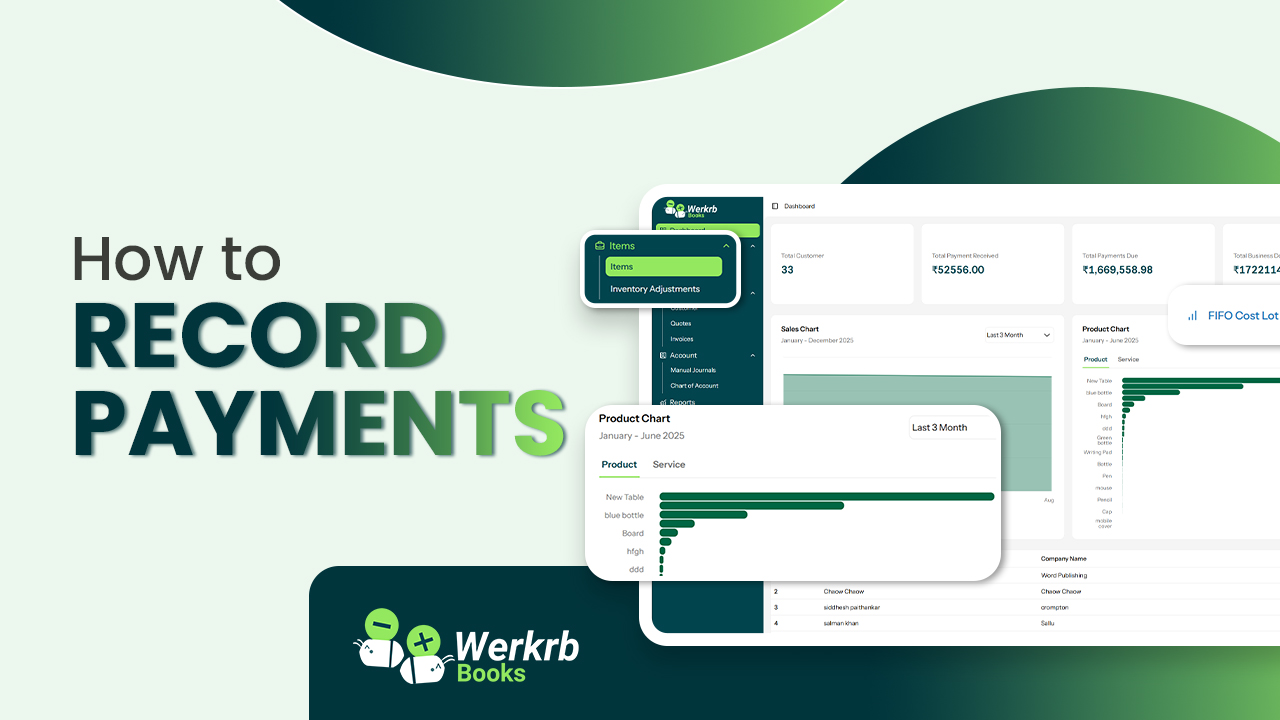
Go to https://books.werkrb.com and sign in with your account. From the dashboard, head over to the Sales or Purchases module depending on whether you’re recording a customer payment (incoming) or a vendor payment (outgoing).
Step 2: Record a Customer Payment
If you’ve received money from a customer:
-
Navigate to Sales → Invoices.
-
Select the invoice you want to record payment for.
-
Click Record Payment.
A payment form will appear where you can enter the following details:
-
Payment Date – The date you received the payment.
-
Payment Method – Cash, Bank Transfer, Credit Card, Cheque, UPI, etc.
-
Reference Number – Transaction ID, cheque number, or bank reference (optional).
-
Amount Received – Enter the exact amount paid.
If the payment is partial, Werkrb Books will automatically update the invoice status as Partially Paid.
Step 3: Record a Vendor Payment
If you’re paying a vendor or supplier:
-
Navigate to Purchases → Bills.
-
Select the bill you are settling.
-
Click Record Payment.
Enter similar details:
-
Payment Date
-
Mode of Payment
-
Reference Number
-
Amount Paid
Once saved, Werkrb Books will update the bill status accordingly.
Step 4: Add Bank Charges or Adjustments (Optional)
Sometimes, payments involve transaction fees or small adjustments. In the payment form, you can:
-
Enter Bank Charges (e.g., transaction fee deducted by your bank).
-
Apply adjustments if necessary.
This ensures your recorded payment matches the actual bank entry.
Step 5: Save and Track Payment Status
After filling in details, click Save. The payment will be linked to the invoice or bill, updating its status to Paid, Partially Paid, or Overdue (if balance remains).
You can always check payment history under each customer, vendor, or invoice record.
Step 6: Reconcile with Bank Statements
For even more accuracy, Werkrb Books allows you to reconcile payments with your uploaded bank statements. This step ensures that your books perfectly match your bank records.